Speed makes the city stream faster
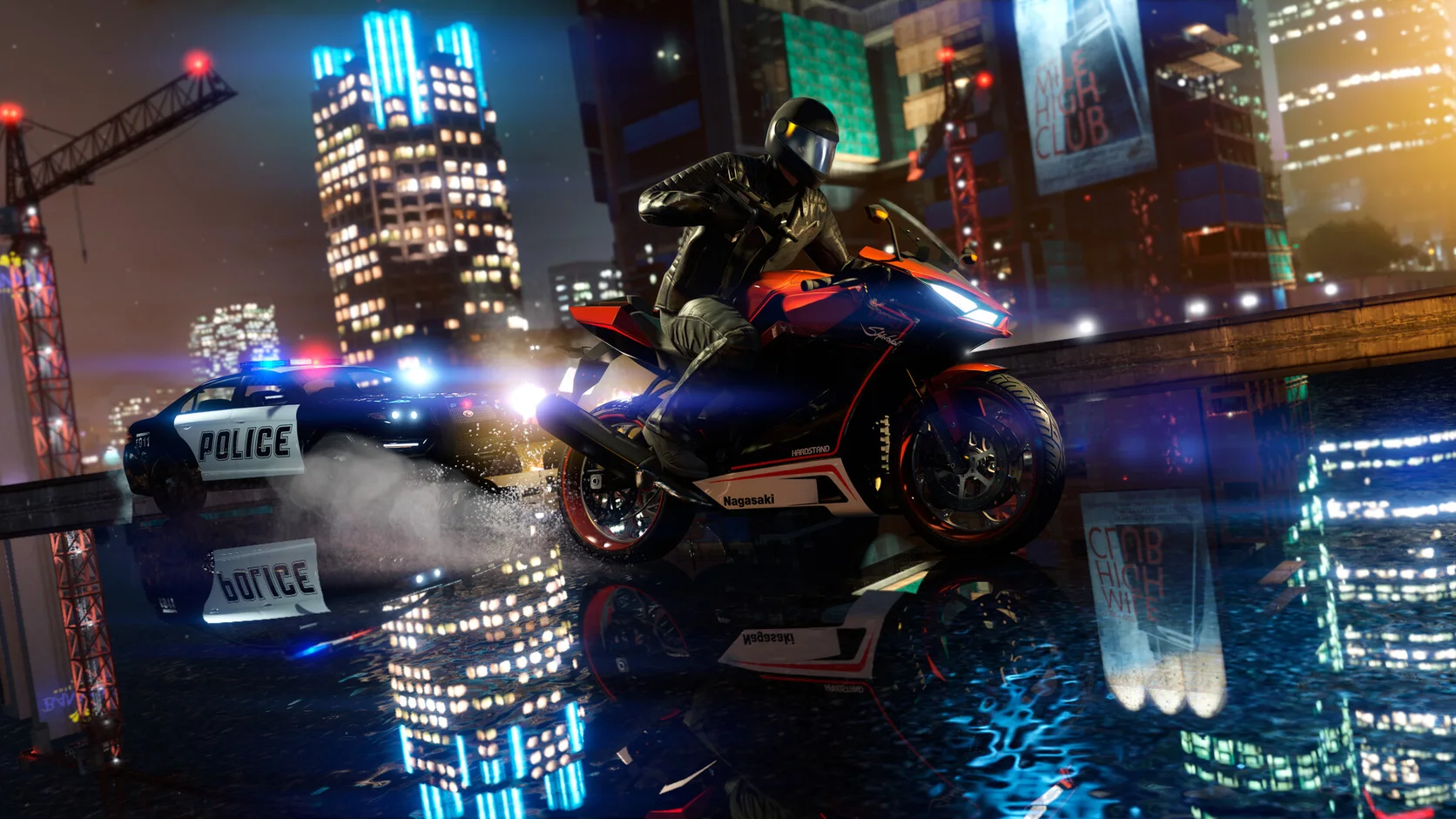
Roads, buildings, cars, and signs must load quickly when you cross Los Santos at high speed.
GTA 5 Enhanced best settings and FPS boost
Ray tracing and fast travel make the Enhanced PC build much heavier than a quiet street suggests. Hone reduces extra Windows work before you test the city.
Read recent reviews in the live Trustpilot feed.
01
GTA 5 Enhanced streams a large city while traffic and weather keep changing. Fast driving can stress storage and the CPU while ray tracing loads the GPU.
Roads, buildings, cars, and signs must load quickly when you cross Los Santos at high speed.
Wet roads, lights, reflections, shadows, crowds, and car detail can stack up downtown.
Ray-traced light and reflections add detail, but they can take a large share of GPU time.
Downloads, clips, launchers, and browser tabs may compete while the game loads new streets.
02
Use the graphics memory bar to avoid an overloaded preset. Then run the built-in benchmark before and after each group of Windows or graphics changes.
Keep the current preset and record the built-in benchmark before tuning the PC.
Stay below the video memory limit shown in the GTA 5 Enhanced graphics menu.
Change ray tracing, reflections, shadows, and resolution before lowering the full preset.
Try DLSS or FSR when the GPU supports it, then inspect road detail, motion, and response.
03
Hone changes supported Windows settings outside GTA 5 Enhanced. It leaves game code, live memory, driving input, saves, and online traffic alone.
Hone does not inject into GTA 5 Enhanced or read and change live game memory.
Hone adds no aim tool, driving script, macro, bot, or control that plays GTA for you.
Hone does not hide programs or try to avoid Rockstar security checks.
A far session host, weak Wi-Fi, lost packets, and ISP routing stay outside Hone.
04
The built-in test repeats several city scenes. Use the same preset before and after Hone so traffic or a different route does not skew the result.
No fixed FPS promise. Results depend on your hardware, game build, drivers, heat, settings, and background apps.
Close extra apps, keep one preset, and save the average and low benchmark values.
Read each change, choose the ones you want, and restart the PC if Hone asks.
Keep the preset and apps fixed. Keep repeatable gains and undo supported changes that do not help.
Start with ray tracing, reflections, shadows, and resolution. Watch video memory use and run the built-in benchmark after each group of changes.
Close disk-heavy apps, test ray tracing and resolution, then try DLSS or FSR. Set a cap the city can hold, and use Hone to reduce extra Windows work.
Fast travel may pull in roads, traffic, and scenery at once. Check SSD and memory use, stop heavy downloads, and compare the built-in test after each change.
Disable it first when the GPU is the limit. Add one ray-traced option at a time while the benchmark stays near your target.
They are separate PC versions. Enhanced adds newer graphics features and faster loading, but it also needs stronger hardware. Legacy remains available for older PCs.
The official minimum lists Windows 10, 8 GB RAM, a Core i7-4770 or FX-9590, a GTX 1630 or RX 6400, and 105 GB on an SSD.
The official recommended list calls for Windows 11, 16 GB RAM, a Core i5-9600K or Ryzen 5 3600, an RTX 3060 or RX 6600 XT, and a DirectStorage-ready SSD.
No. Hone changes supported Windows settings, not GTA 5 Enhanced files, graphics options, saves, mods, or accounts.
Hone works outside the game. It does not inject, edit live memory, automate input, change packets, or bypass anti-cheat. Hone is not made or approved by Rockstar Games.
Yes. Use the free plan to test a limited set of PC changes with GTA 5 Enhanced before you choose Premium.