Busy bases keep the CPU working
Pal movement, work paths, crafting, and item transport can all run at the same time.
Palworld 1.0 FPS boost and PC optimization
A busy base can fill the screen with working Pals, buildings, effects, and moving items. Hone cuts avoidable Windows load so your PC has more room for Palworld.
Read recent reviews in the live Trustpilot feed.
01
Pals keep crafting, farming, and moving items while you walk through a base. A fight or trip outside adds more work. Watch for frame spikes where those jobs overlap.
Pal movement, work paths, crafting, and item transport can all run at the same time.
Grass, trees, buildings, water, and distant objects can shift the graphics load as you travel.
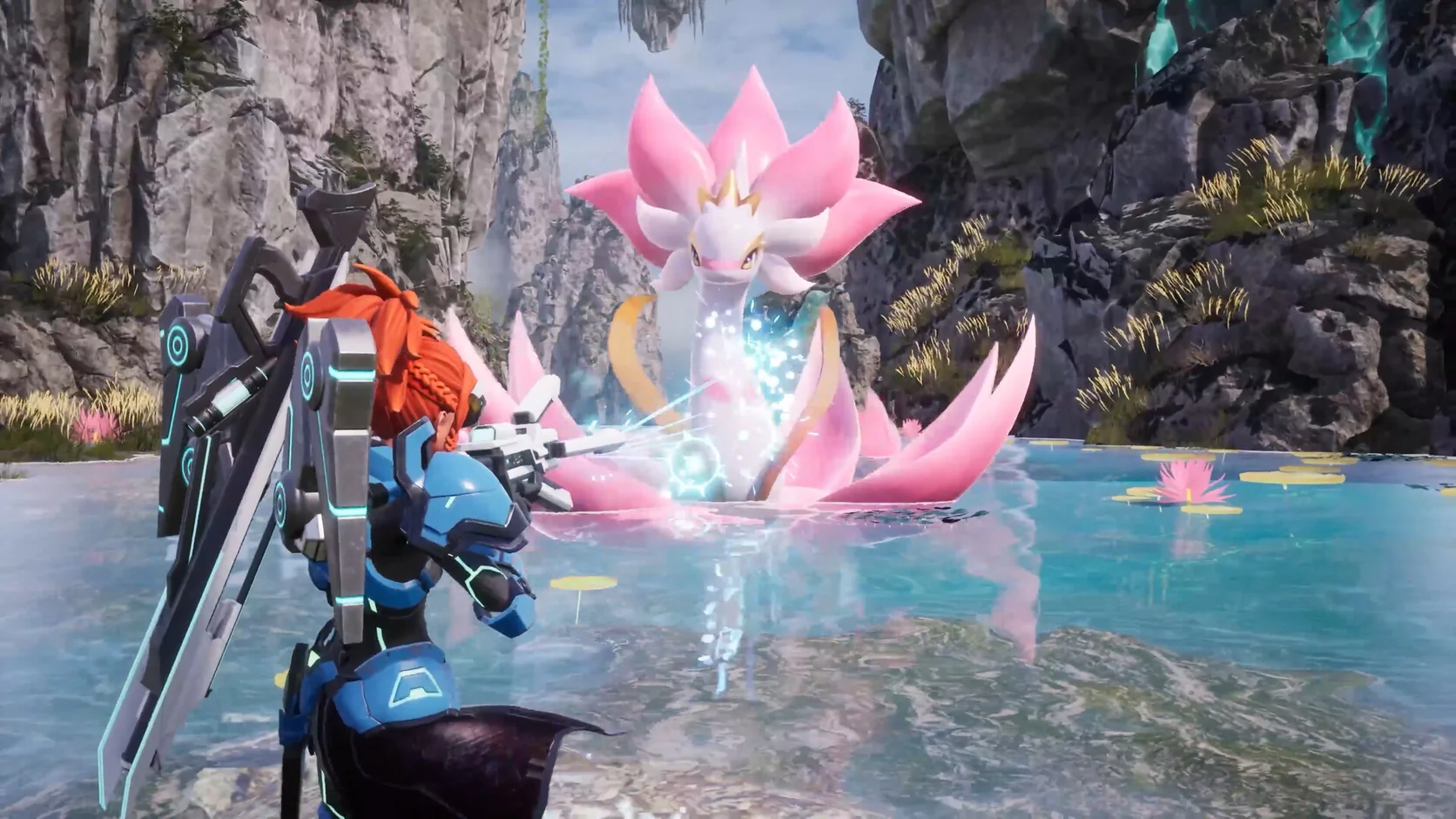
Several Pals, attacks, particles, and damage effects can make the GPU work harder in seconds.
Browsers, launchers, overlays, clips, and downloads can use CPU time, memory, or disk access.
02
Hone handles supported PC-side tuning. Then you can test the game options that have the biggest effect on your own hardware.
Reduce unneeded app work so more CPU time and memory stay free for the game.
Review gaming, power, and system changes that may help frame time and input response.
Test view distance, shadows, grass, and effects before dropping every setting.
Use a frame cap your PC can hold at your busiest base. A steady result can feel better than a higher number that jumps.
03
Hone works through supported Windows settings. It stays outside Palworld and leaves live game code, memory, inputs, saves, and network traffic alone.
Hone does not inject into Palworld or read and change live game memory.
Hone does not add mods, change game files, edit saves, or unlock content.
Hone does not add aim tools, scripts, macros, bots, or features that play for you.
Hone does not hide software or try to get around game security tools.
04
Start the Palworld check at your busiest base. Watch FPS while Pals work, then walk a short path outside. Repeat both parts after Hone and keep only changes that help.
No fixed FPS promise. Results depend on your hardware, game build, drivers, heat, settings, base size, and active Pals.
Keep one graphics preset, time of day, and group of active Pals. Record one minute of FPS plus any visible dips or stutter.
Review each change, apply the ones you want, and restart if Hone asks you to.
Load the same save and follow the same route. Keep gains you can see and restore changes that do not help.
Start with view distance, shadows, grass, and effects. Change one group at a time, then test your busiest base. Keep textures clear if your graphics memory has room.
Close heavy apps, use a stable frame cap, lower costly graphics options, and keep drivers current. Hone can also reduce avoidable Windows-side load.
A busy base may update Pal paths, jobs, crafting, and storage while the game draws buildings and effects. Full memory or open background apps can make frame times uneven too.
Choose the target your PC can hold at a busy base and during a fight. A stable cap often feels better than a higher FPS number that keeps dropping.
Try DLSS if the option appears on your PC and native resolution is too heavy. Compare its modes in the same base, then keep the clearest mode with steady frame times.
A patch may reset options or change shader work. Check your preset, restart the PC, and repeat the same test before making more changes.
No. Pocketpair released Palworld 1.0 on July 9, 2026, after its January 2024 Early Access launch.
No. The official minimum PC requirements list 64-bit Windows 10. The recommended requirements list 64-bit Windows 11.
Pocketpair lists Windows 10, 16 GB RAM, DirectX 11, a 40 GB SSD, a Core i5-9400F, and a GTX 1660.
Pocketpair recommends Windows 11, 32 GB RAM, DirectX 11, a 40 GB SSD, a Core i5-12400 or Ryzen 5 5600X, and an RTX 3060 Ti or RX 6700 XT.
More active Pals can add more movement, paths, jobs, and item work. Pocketpair notes that performance can vary with the number of active Pals.
Hone works outside the game. It does not inject, edit live memory, automate input, change saves, or bypass game security. Hone is not made or approved by Pocketpair.
Yes. The free plan lets you try several PC optimizations before you upgrade.