
FPS drops during fast plays
Boost trails, goal effects, and quick camera moves can expose a PC that is already under load.
01
Rocket League can look simple and still feel rough on a busy PC. Background apps and Windows tasks can take power from the game when the play speeds up.
Boost trails, goal effects, and quick camera moves can expose a PC that is already under load.
A short system pause can throw off the timing of an aerial, save, or fifty-fifty.
Launchers, overlays, downloads, and browser tabs can use the CPU, memory, or network in the background.
One guide may favor looks while another favors speed. Hone gives your PC a clear performance starting point.
03
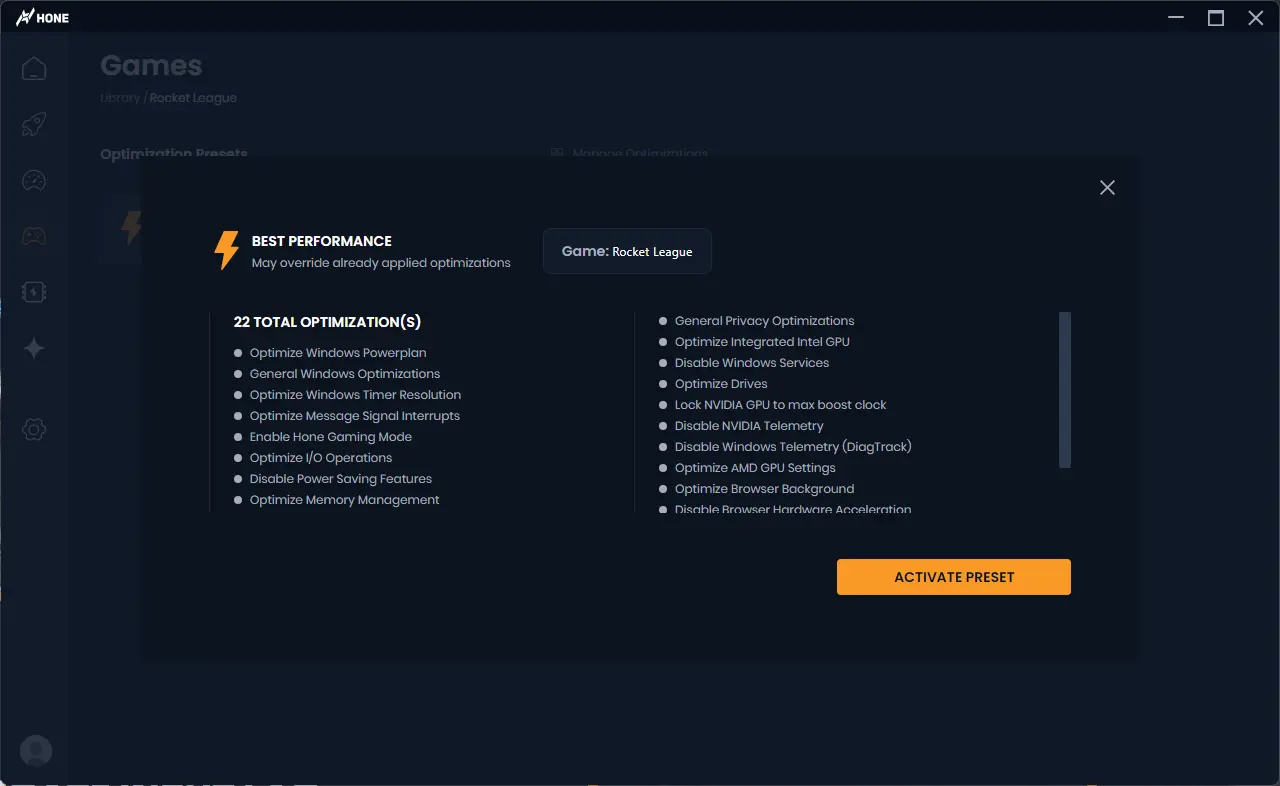
Choose Rocket League in Hone, review the preset, and activate it. Hone can tune supported game settings and the Windows side while you stay in control.
Apply performance-focused game settings without changing each option by hand.
Reduce background load and tune system settings that can affect FPS and frame time.
Cut unneeded app traffic on your PC so downloads and updates do less work while you play.
04
Hone applies only the optimizations you select. You can review the Rocket League preset first and restore changes when you are done.
Hone changes supported Rocket League settings only after you choose to activate the preset.
Hone does not add macros, bots, scripts, cheats, or automated controller inputs.
Server load, Wi-Fi, distance, heat, and weak hardware can still limit FPS or connection quality.
05
On our test PC, Hone raised Rocket League from 400 to 540 average FPS. That is a gain of 140 average FPS in this test.
Tested using Intel 10900k (5.5 GHz AC), RTX 4090 (stock), 16 GB DDR4 RAM (18-18-18-24-4000 MHz) - Results may vary.
Your result will depend on your PC, Rocket League settings, drivers, heat, and the apps open in the background.
Start with performance-focused graphics settings, turn off effects you do not need, and use a frame cap your PC can hold. Hone gives you a simple preset and tunes Windows too.
Hone can reduce Windows background load and apply supported performance settings. It cannot replace a faster CPU or GPU. Results will vary by PC.
Hone can cut background traffic on your PC. It cannot control Rocket League servers, Wi-Fi, distance, or your internet route, so ping will not drop for every player.
Only when you choose the Rocket League preset. You can review the changes before you apply them and restore them later.
Yes. The free plan lets you try several performance optimizations before you upgrade.