Buildings change during the cashout
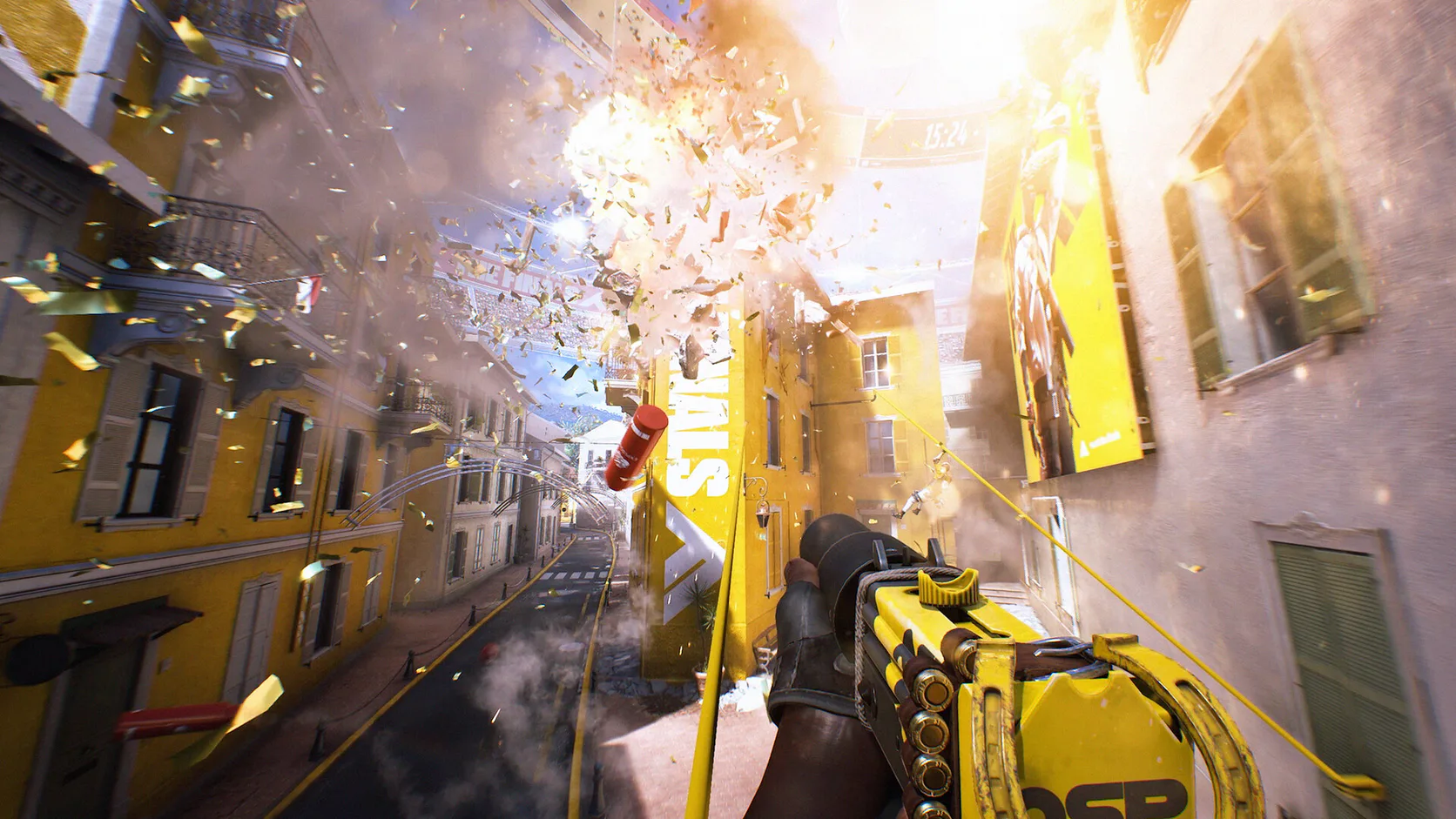
Walls, floors, props, and physics objects may all move while teams fight around the box.
THE FINALS FPS boost and PC optimization
A stable room can become rubble in one cashout fight. Hone reduces extra Windows work so the PC has more room for physics, smoke, and sudden new sight lines.
Read recent reviews in the live Trustpilot feed.
01
THE FINALS changes the level while you play. Falling floors, moving debris, smoke, and players can raise CPU and GPU work much faster than a quiet practice area.
Walls, floors, props, and physics objects may all move while teams fight around the box.
Effects and lighting may run well in clear air, then slow down when smoke and debris fill the room.
A new map, season patch, or graphics driver may change shaders and reset graphics choices.
Clip tools, browser video, overlays, and downloads can use resources during the busiest moments.
02
Clear Windows load first. Then test game settings where walls fall and teams use gadgets, not only in an empty corner of the map.
Reduce app work you do not need so the arena can use more CPU time and memory.
Check each gaming, power, and system option before applying it to Windows.
Change effects, shadows, lighting, and render scale before lowering every graphics option.
Use a frame cap the PC can hold through destruction. A quiet-room peak does not show match stability.
03
Hone applies supported Windows changes outside THE FINALS. It leaves game code, live memory, player input, and network packets alone.
Hone does not inject into THE FINALS or read and change live game memory.
Hone adds no aim tools, movement scripts, macros, bots, or controls that play for you.
Hone does not hide software or try to avoid THE FINALS security checks.
A far server, weak Wi-Fi, packet loss, and ISP routing are not fixed by Windows tuning.
04
Use one map route with smoke, a breach, and a cashout fight. Keep the class and graphics preset fixed before and after Hone.
No fixed FPS promise. Results depend on your hardware, game build, drivers, heat, settings, and background apps.
Record FPS and frame spikes on one route. Note the map, class, preset, and open apps.
Read every change, select the ones you want, and restart if Hone requests it.
Keep the map route and settings close. Keep clear gains and undo supported changes that do not help.
Start with effects, global lighting, shadows, and render scale. Test each group during smoke and destruction, where the arena is hardest to draw.
Close recording or browser work, lower effect-heavy options, and use a cap the PC can hold in a cashout fight. Hone can reduce extra Windows load.
A collapsing area adds physics, debris, smoke, players, and new views at once. Full graphics memory can also cause uneven frame times.
Watch FPS and ping at the same time. Steady ping with falling FPS points to PC load. Test fewer effects and less background work.
A season patch can reset options or rebuild shaders. Confirm the preset, restart, and repeat the same arena route before changing more.
Old launch commands can stop working or cause trouble after an update. Start with current in-game settings and only keep a command you understand and can test.
The official minimum lists 64-bit Windows 10 or later, 12 GB RAM, DirectX 12, a Core i5-6600K or Ryzen 5 1600, and a GTX 1050 Ti or RX 580.
The official recommended list calls for 16 GB RAM, a Core i5-9600K or Ryzen 5 3600, and an RTX 2070 or RX 5700 XT.
Hone works outside the game. It does not inject, edit live memory, automate input, change packets, or bypass anti-cheat. Hone is not made or approved by Embark Studios.
Yes. Use the free plan to test a limited set of PC changes with THE FINALS before you choose Premium.